
Zum IPTV Player – The #1 IPTV Player for Your IPTV Content
Looking for a reliable IPTV player to organize and enjoy your favorite content? Zum IPTV Player makes it easier to manage your IPTV playlists, access live TV streams, organize channels, and enjoy movies and series through a simple, user-friendly interface.
Whether you are searching for an IPTV player for Android TV, an IPTV app for your TV Box, an IPTV player for Firestick, or an easy way to manage M3U playlists and Xtream Codes, Zum Player provides the tools you need to get started.
Designed for simplicity and convenience, Zum Player combines playlist management, electronic program guide (EPG) support, customizable channel lists, parental controls, and advanced playback features in one application.
Instead of struggling with complicated configurations, you can import your playlist, organize your channels, hide unwanted categories, and personalize your viewing experience.
In this guide, we will explore how Zum Player works, its main features, how to install it on compatible devices, and what to know about using IPTV on Android TV, Fire TV Stick, iPhone, Windows, Samsung Smart TV, and LG Smart TV.
What Is Zum IPTV Player?
Zum Player is an IPTV media player designed to play content from external IPTV playlists in supported formats, including M3U and Xtream Codes.
An IPTV player is an application that reads and organizes streaming information provided by a playlist or compatible service. Depending on the playlist, this information may include live television channels, movies, TV series, and electronic program guide data.
Unlike an IPTV provider, Zum Player does not supply television channels or subscriptions. You add your own compatible playlist and use the application to access and organize the content it contains.
This approach gives you more flexibility when choosing your IPTV source and managing your viewing experience.
Why Choose Zum Player?
Zum Player focuses on the features that matter when choosing an IPTV player:
- M3U playlist support: Import compatible playlists using a URL or file.
- Xtream Codes support: Connect compatible playlists using the required login details.
- Simple playlist management: Add, edit, and manage playlists with less manual configuration.
- Channel organization: Rearrange channels and categories to suit your preferences.
- Hide unwanted channels: Keep your interface clean by hiding content you do not need.
- Electronic Program Guide (EPG): View supported television schedules and program information.
- Playback position memory: Resume supported movies and series from where you stopped watching.
- Hardware acceleration: Use supported device hardware for video decoding, including compatible high-resolution streams.
- Parental controls: Protect restricted categories with PIN-based controls.
- Multilingual interface: Use supported interface languages, including English and Spanish.
- No built-in advertising: Enjoy the player without advertisements built into the application.
The goal is straightforward: provide a practical IPTV player that makes playlist setup, navigation, and everyday streaming easier.
IPTV Player for Android TV
If you are looking for an IPTV player for Android TV, Zum Player is designed to help you organize your playlists and access compatible streaming content directly on your television.
Android TV devices offer a convenient way to watch IPTV on a large screen. Instead of navigating channels on a smartphone, you can use your television remote to browse your available categories and select the content you want to play.
Zum Player supports M3U and Xtream Codes playlists, making it suitable for users whose IPTV providers offer either of these compatible connection methods.
How to Use Zum Player on Android TV
Getting started involves a few simple steps:
- Download Zum Player from the official Google Play listing or use the official APK download option where appropriate.
- Open the application on your compatible Android TV device.
- Add your M3U playlist URL, upload a supported playlist file, or enter your Xtream Codes connection details.
- Allow the application to load and organize the available content.
- Browse your channels, categories, movies, and series, depending on the playlist you have added.
Once your playlist is configured, you can personalize the channel list and hide categories you do not want to see.
Best IPTV Player for Android TV: What Should You Look For?
When comparing IPTV players for Android TV, look for features such as:
- Compatibility with your playlist format.
- Smooth navigation with a television remote.
- Support for electronic program guides.
- Convenient channel and category organization.
- Reliable playback on your specific device.
- A straightforward setup process.
Zum Player brings these features together in an interface designed to make IPTV playlist management easier.
For the best experience, use a compatible Android TV device, a stable internet connection, and a legitimate IPTV playlist.
IPTV Player for Android TV Box
An Android TV Box can turn a compatible television into a flexible streaming device. If you already use an Android Box, choosing an IPTV player that supports your playlist format is an important step.
Zum Player can be used on compatible Android devices, including supported TV Boxes, provided that the device meets the application's requirements.
Whether you use a dedicated Android TV Box or another compatible Android streaming device, the setup process is similar.
How to Install an IPTV Player on an Android Box
Follow these steps to get started:
- Open Google Play on your device, if available.
- Search for Zum Player and install the official application.
- Alternatively, visit the official website at zumplayer.com and check the available Android APK download.
- Launch Zum Player.
- Import your M3U playlist or enter your supported Xtream Codes details.
- Wait for the playlist to load and start browsing your available content.
If your Android Box does not include Google Play, check that the device supports Android APK installation before using the official download option.
How to Improve IPTV Playback on an Android TV Box
Playback quality depends on several factors, including the device hardware, internet connection, playlist source, and video format.
For better results:
- Connect your TV Box to a stable Wi-Fi network or Ethernet connection.
- Keep your device software up to date.
- Close unnecessary applications running in the background.
- Check whether your device supports the resolution and codec used by the stream.
- Make sure the playlist source itself is working correctly.
A capable IPTV player can help organize playback, but no application can guarantee uninterrupted streaming if the source or internet connection is unreliable.
IPTV Player for Firestick Using Downloader
Searching for an IPTV player for Amazon Firestick? Many Fire TV users install compatible applications through the Amazon Appstore or, where supported, by using an APK installation method.
Zum Player's official website provides an Android download option and displays the Downloader code 5212645.
You can use the following general process to check the installation options available for your device.
How to Install Zum Player on Firestick With Downloader
- Open the Downloader application on your Fire TV device.
- If Downloader is not installed, look for it in the official Amazon Appstore where available.
- Follow the installation instructions provided through the official Zum Player website.
- Visit zumplayer.com to check the current download information and enter the displayed code, 5212645, if the official Downloader destination supports that method.
- If an APK is offered, verify that it is the official Zum Player file and that your Fire TV device supports installing it.
- Follow the device's security prompts only if you trust the source and understand the permissions involved.
- Open the application and add your compatible playlist if installation succeeds.
Important: The Downloader code is the code currently displayed on the Zum Player website, not a guarantee that the application is available or compatible with every Fire TV model. Check the current official instructions before installing it. Amazon Fire TV device compatibility can vary by model and operating system.
Can You Use an M3U Playlist on Firestick?
M3U is a playlist format used by many IPTV applications. If your chosen player supports M3U playlists and your Fire TV device is compatible with that application, you can generally add the playlist through a URL or supported file-import method.
With Zum Player, the available playlist options include M3U and Xtream Codes.
You must provide your own compatible playlist. Zum Player does not include television channels or provide IPTV subscriptions.
IPTV Player for Android Phones and Tablets
An IPTV player for Android phones lets you manage your playlist without needing a television or streaming box.
Zum Player is designed for Android devices and supports external M3U and Xtream Codes playlists. This makes it useful for people who want to organize their available IPTV content on a compatible mobile device.
How to Set Up an IPTV Playlist on Android
To get started:
- Install Zum Player from the official download source.
- Open the application.
- Choose the available playlist-import method.
- Enter your M3U URL, select a supported playlist file, or enter the required Xtream Codes details.
- Let the application process the playlist.
- Browse the available channels and categories.
The exact content displayed depends on the playlist you provide.
Best IPTV Player for Android: Features That Matter
When choosing an Android IPTV app, consider the following:
- M3U player functionality: The ability to load compatible playlist URLs or files.
- Xtream Codes compatibility: An alternative connection method when supported by your provider.
- Easy navigation: A clear interface that makes channels and categories easy to find.
- EPG support: Access to program schedules when guide data is available.
- Playback controls: A convenient way to navigate your selected content.
- Playlist customization: Options for arranging channels and hiding unwanted categories.
Zum Player combines playlist management with these practical features to help simplify the IPTV experience.
IPTV Player for iPhone and iPad
If you are searching for an IPTV player for iPhone, an IPTV app for iPad, or an M3U player for iOS, it is important to check whether your chosen application is available for your Apple device.
Zum Player's website currently describes iOS support as coming soon. Check the official website and the Apple App Store for an official release before attempting to install it.
What to Look for in an iPhone IPTV Player
When selecting an IPTV player for iPhone or iPad, consider these features:
- M3U playlist compatibility.
- Xtream Codes support, where offered.
- A user-friendly touchscreen interface.
- Easy playlist management.
- EPG support for compatible sources.
- Reliable playback on your particular Apple device.
- Clear information about pricing and supported features.
If you already use Zum Player on Android, keep an eye on the official website for updates about iOS availability.
Avoid unofficial installation files or websites claiming to offer an iPhone version that has not been confirmed by the developer.
IPTV Player for Windows PC and Laptop
Many users search for an IPTV player for Windows 11, an IPTV app for Windows 10, or an M3U player for PC.
Zum Player is available for Windows from the Microsoft Store. A computer is a convenient place to manage and watch compatible playlists, especially if you prefer a larger monitor, keyboard and mouse.
How to Use Zum Player on Windows
- Install Zum Player from the Microsoft Store.
- Open the application on your PC or laptop.
- Add your M3U playlist URL or your Xtream Codes details.
- Wait for the playlist to load, then browse live channels, movies and series.
What Is the Best M3U Player for PC?
When comparing M3U players for Windows, look at supported playlist formats, playback compatibility, ease of use, and whether you need a full television guide or only basic stream playback.
You should also check whether the application supports your preferred video formats and whether its developer provides official updates.
Choosing the right player depends on how you want to organize and watch your own authorized content.
IPTV Player for Samsung Smart TV
Samsung Smart TVs use Samsung's TV operating system, so an application designed for Android TV will not necessarily install directly on a Samsung television.
If you are looking for an IPTV player for Samsung Smart TV, first check which applications are available in the official Samsung app store for your television model and region.
Zum Player's website currently lists Samsung Smart TV compatibility among its planned platform expansions rather than confirming a universally available native Samsung TV application.
How to Choose an IPTV App for Samsung TV
Before installing an IPTV app on your Samsung television, check:
- Whether the application is listed in the official Samsung app store.
- Whether your television model and year are supported.
- Whether the app accepts M3U playlists or Xtream Codes credentials.
- Whether EPG and playback features are available.
- Whether activation or a separate licence is required.
If you want to use Zum Player on a Samsung TV, follow the official website for compatibility announcements and installation instructions.
Do not assume that an Android APK can be installed directly on a Samsung Smart TV.
IPTV Player for LG Smart TV
LG Smart TVs use webOS, which is different from Android TV and Android-based streaming boxes. Zum Player is available for supported LG TVs in the LG Content Store.
Confirm that the listing supports your television model before you install it.
What to Check Before Installing an IPTV Player on LG
Look for the following:
- Compatibility with your LG TV model and webOS version.
- M3U playlist support.
- Xtream Codes compatibility, if required.
- EPG availability.
- Remote-control navigation.
- Clear setup and activation instructions.
A compatible external streaming device may be another option if your particular LG model is not supported.
Best IPTV Player for M3U Playlists
M3U is one of the most widely used playlist formats in IPTV applications. It allows a compatible player to read a list of stream addresses and associated information.
If your IPTV provider supplies an M3U URL or file, you need a player that supports that format.
Zum Player supports M3U playlist imports through the available URL, file-upload, or manual-entry options.
How to Add an M3U Playlist to Zum Player
The process is straightforward:
- Obtain your M3U playlist URL or file from a legitimate source.
- Open Zum Player on a compatible Android device.
- Select the appropriate playlist-import option.
- Enter the URL or provide the supported file.
- Wait for the playlist to load.
- Open the relevant category and select an available stream.
Depending on the source, the playlist may include live TV channels, movies, series, or other supported streams.
Why Is My M3U Playlist Not Working?
If your M3U playlist does not load, several issues may be responsible:
- The playlist URL contains an error.
- The playlist has expired or been disabled by its provider.
- The server is temporarily unavailable.
- Your internet connection is unstable.
- The playlist uses an unsupported format or contains invalid entries.
- The provider has changed the login details or access rules.
First, check the playlist details with its provider. Then verify your connection and confirm that the playlist is compatible with your player.
Changing applications will not necessarily fix a problem originating from an unavailable or invalid source.
IPTV Player With Xtream Codes Support
Xtream Codes is another common way to connect an IPTV playlist to a compatible player.
Instead of importing a single M3U URL, the connection process typically uses a server address, username, and password supplied by your IPTV provider.
Zum Player supports compatible Xtream Codes playlists, allowing users to choose this connection method when it is supported by their source.
M3U vs. Xtream Codes: Which Should You Choose?
Both methods can provide access to IPTV content, but they differ in how the connection details are entered.
M3U playlists
- Usually supplied as a playlist URL or file.
- Can be convenient when your provider gives you a direct M3U link.
- May include stream addresses and associated metadata.
Xtream Codes
- Usually requires a server address, username, and password.
- Can organize supported live TV, movies, and series into separate categories.
- Depends on compatibility between the player and the provider's service.
The best option is the format your provider supports and your player can process correctly.
Never share your playlist URL or login credentials publicly. These details may provide access to your personal streaming account.
IPTV Player With EPG: Organize Your TV Guide
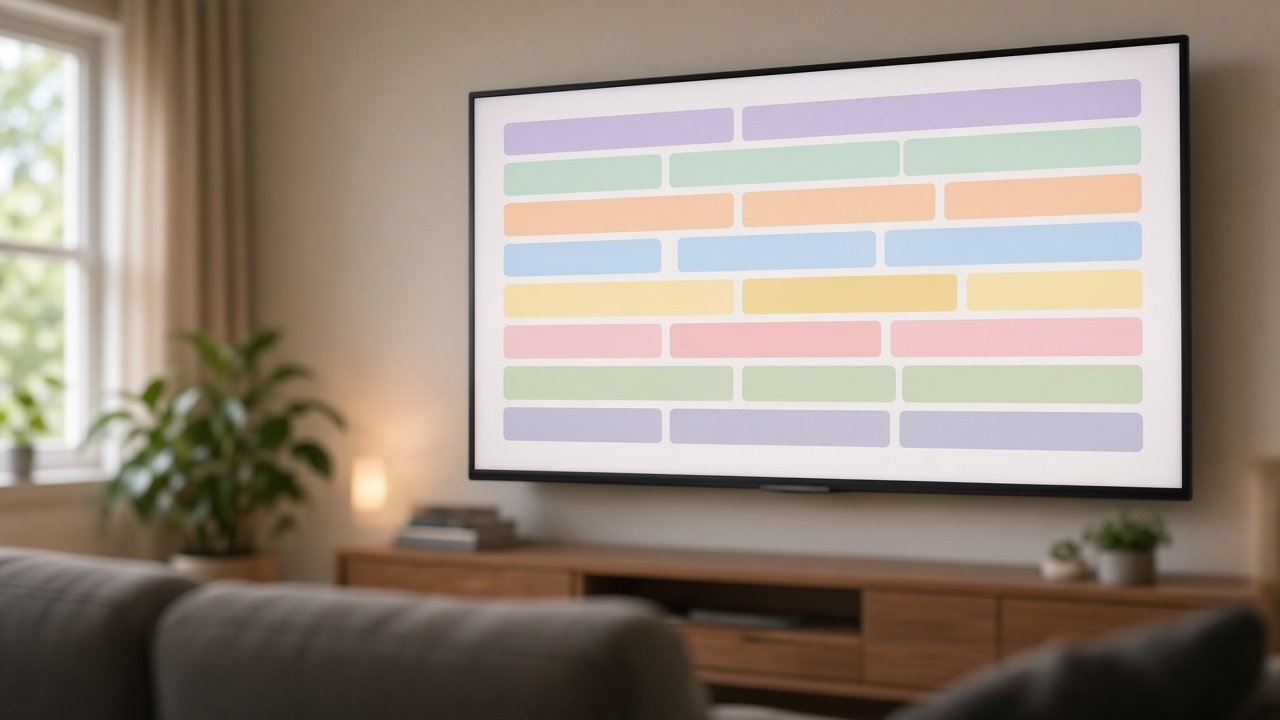
EPG stands for Electronic Program Guide. It displays television schedule information, helping you understand what is currently playing and what is scheduled next.
For users who watch live television through IPTV, an electronic program guide can make browsing much easier.
Zum Player includes EPG support and supports multiple EPG sources according to its official website.
How Does an IPTV EPG Work?
An EPG uses program information supplied by a compatible source to display details such as:
- Program titles.
- Scheduled broadcast times.
- Program descriptions, when provided.
- Current and upcoming programs.
- Channel-specific schedule information.
The quality and completeness of the guide depend on the EPG data available for your playlist.
Why Is My IPTV EPG Not Working?
If your television guide is empty or incomplete, check whether your provider supplies EPG information and whether the relevant source is configured correctly.
Missing schedules do not necessarily mean the player is malfunctioning. Some playlists contain channel information without corresponding program data.
Confirm the available EPG source and its compatibility before troubleshooting further.
IPTV Player for Movies and Series
Some IPTV playlists contain more than live television. Depending on the provider and the format supported by the application, they may also include movies and TV series.
Zum Player supports remembering playback position for movies and series, allowing compatible content to resume from where you stopped watching.
This can be useful when you are watching a long film or a series with multiple episodes.
How to Resume Movies and Series
When supported content is played in Zum Player, the application can remember your playback position.
After closing the application, you can return to supported content and continue from the saved position rather than manually searching for the same point again.
The available movies and series depend entirely on the playlist you add. Zum Player does not provide a built-in catalogue of films or television series.
IPTV Buffering or Freezing? How to Improve Playback
Buffering is one of the most common frustrations for people using streaming applications.
If your IPTV stream keeps freezing, stops unexpectedly, or takes a long time to start, the cause may be your internet connection, the source server, your device, or the stream format.
A good troubleshooting process can help you identify the underlying problem.
1. Check Your Internet Connection
Test whether other websites or streaming applications work correctly on the same device.
If everything is slow, the problem may be related to your network rather than the IPTV player.
2. Try Ethernet Instead of Wi-Fi
Where possible, connect your Android TV Box or television device through Ethernet.
A wired connection can reduce interference and improve consistency, especially when the device is far from the router.
3. Restart Your Device
Restarting your Android TV, TV Box, or phone can clear temporary issues and release system resources.
4. Check the Playlist Source
If only one channel or category is affected, the problem may be with the source itself.
Contact your provider if a stream remains unavailable.
5. Check Device Compatibility
Older devices may struggle with certain resolutions, codecs, or demanding streams.
Use a device that supports the formats provided by your source.
6. Keep the Application Updated
Install official updates when available. Updates can include compatibility improvements, bug fixes, and performance changes.
Can an IPTV Player Guarantee No Buffering?
No IPTV player can guarantee zero buffering in every situation. Playback depends on the quality of the source, the network, the device, and the stream format.
Zum Player is designed with playback and hardware acceleration features intended to support a smoother experience on compatible devices, but results can vary.
Customize Your IPTV Experience With Zum Player
A good IPTV player should do more than open a stream. It should help you organize the content you actually use.
Zum Player includes several features designed to make everyday playlist management easier.
Rearrange Channels and Categories
Organize your available channels and categories to match your preferences.
A well-organized playlist makes it easier to find frequently watched content without repeatedly scrolling through a long list.
Hide Unwanted Channels
If your playlist contains categories or channels you never use, you can hide unwanted items to reduce clutter.
This helps create a cleaner interface and makes navigation more convenient.
Manage Playlists Through the Web Portal
Zum Player offers web-based playlist management linked to the application.
This provides an additional way to import or edit playlists remotely, using the available features of the web portal.
Visit the official website to access the relevant playlist-management options.
Use Parental Controls
Zum Player offers PIN-protected parental controls for restricting access to selected content categories.
This can help households manage access to restricted channels within supported application features.
Remember that parental controls should be configured carefully and that their exact behavior depends on the application's current implementation.
Enjoy a Multilingual Interface
Zum Player supports multiple interface languages, including English and Spanish.
Language options make the application more accessible to users who prefer navigating the interface in their own language.
Is Zum Player Free?
Zum Player's official website advertises a free trial so users can test the application before deciding whether to purchase a licence.
The current offer and duration should be confirmed on the official website, as trial conditions and pricing can change.
During your evaluation, you can explore the available playlist-management and playback features on a compatible device.
After the trial, check the official purchase or licence page for the current price, payment options, and renewal conditions.
It is also important to understand that the application licence is separate from any subscription you may have with an IPTV provider.
Zum Player does not include IPTV channels or supply an IPTV subscription.
Does Zum Player Include IPTV Channels?
No. Zum Player is an IPTV media player, not an IPTV content provider.
The application allows you to load and organize compatible external playlists. The channels, movies, series, and program information you see depend on the source you choose.
To use the application, you need a compatible playlist from a source you are authorized to access.
Before using an IPTV service, make sure the content provider has the necessary rights to distribute the material in your country.
Zum Player is designed to play supported content supplied by the user; it does not sell, supply, or guarantee access to third-party playlists.
Frequently Asked Questions About Zum IPTV Player
What is Zum IPTV Player?
Zum Player is an IPTV media player that supports external M3U and Xtream Codes playlists. It provides tools for organizing channels, managing playlists, viewing supported EPG data, and playing compatible streaming content.
What is the best IPTV player for Android TV?
The best IPTV player depends on your device, playlist format, desired features, and budget. Zum Player is an option for compatible Android devices, offering M3U and Xtream Codes support, playlist organization, EPG features, and parental controls.
Can I use Zum Player with an M3U playlist?
Yes. Zum Player supports compatible M3U playlists, which can be imported using the available URL, file-upload, or manual-entry methods.
Does Zum Player support Xtream Codes?
Yes. The application supports compatible Xtream Codes playlists. You will need the connection details supplied by your provider.
Can I install Zum Player on Firestick?
The official website displays a Downloader code and an Android download option. Check the current official installation instructions and confirm compatibility with your specific Fire TV model before proceeding.
Is Zum Player available for iPhone?
The official website currently describes iOS support as coming soon. Check the website or Apple App Store for an official release.
Can I use Zum Player on Samsung or LG Smart TVs?
Zum Player is available for supported LG TVs in the LG Content Store. Confirm that your model is supported before you install it. Samsung Smart TV support is still listed as a planned expansion, so check the official website before attempting to install it there.
Is there a Windows version of Zum Player?
Yes. Zum Player for Windows is available from the Microsoft Store. Install it from the official listing and add your own compatible playlist.
Why does my IPTV playlist keep buffering?
Buffering can result from an unstable connection, an overloaded source server, an unsupported stream format, or device limitations. Check your network, test other streams, and contact your playlist provider if the problem persists.
Does Zum Player provide channels or movies?
No. You must add your own compatible playlist. The application does not provide television channels, movies, series, or IPTV subscriptions.
Where can I download Zum Player?
Visit the official website at https://zumplayer.com/ to access the current download options, setup information, and licence details.
Final Thoughts: Is Zum Player the Right IPTV Player for You?
If you are searching for an IPTV player that combines playlist compatibility with practical organization tools, Zum Player is worth considering on supported Android devices.
Its M3U and Xtream Codes support gives users flexibility when adding compatible playlists, while EPG support, channel organization, playback-position memory, parental controls, and hardware acceleration help make the viewing experience more convenient.
Whether you are configuring an IPTV playlist on Android TV, using a compatible Android Box, or exploring installation options for Fire TV devices, the most important steps are to confirm device compatibility, use a reliable source, and configure your playlist correctly.
For updates on supported devices, downloads, and licensing, visit the official website.
Ready to try Zum Player?
Visit ZumPlayer.com to explore the application, check the latest installation instructions, and start setting up your compatible IPTV playlist.
Disclaimer: Zum Player is a media player for external IPTV playlists. It does not provide, sell, or distribute IPTV channels, movies, or series. Users are responsible for ensuring that their playlists and streaming sources are legal and that they have the necessary rights to access the content.